Graphical User Interface (GUI) Usage Guide
The graphical interface of FMU Manipulation Toolbox offers an intuitive and visual way to manipulate your FMUs without using the command line.
Requires the gui extra
The GUI is built with PySide6 (Qt for Python), which is an optional dependency. Install it with pip install "fmu-manipulation-toolbox[gui]" — see the Installation Guide.
Launching the Interface
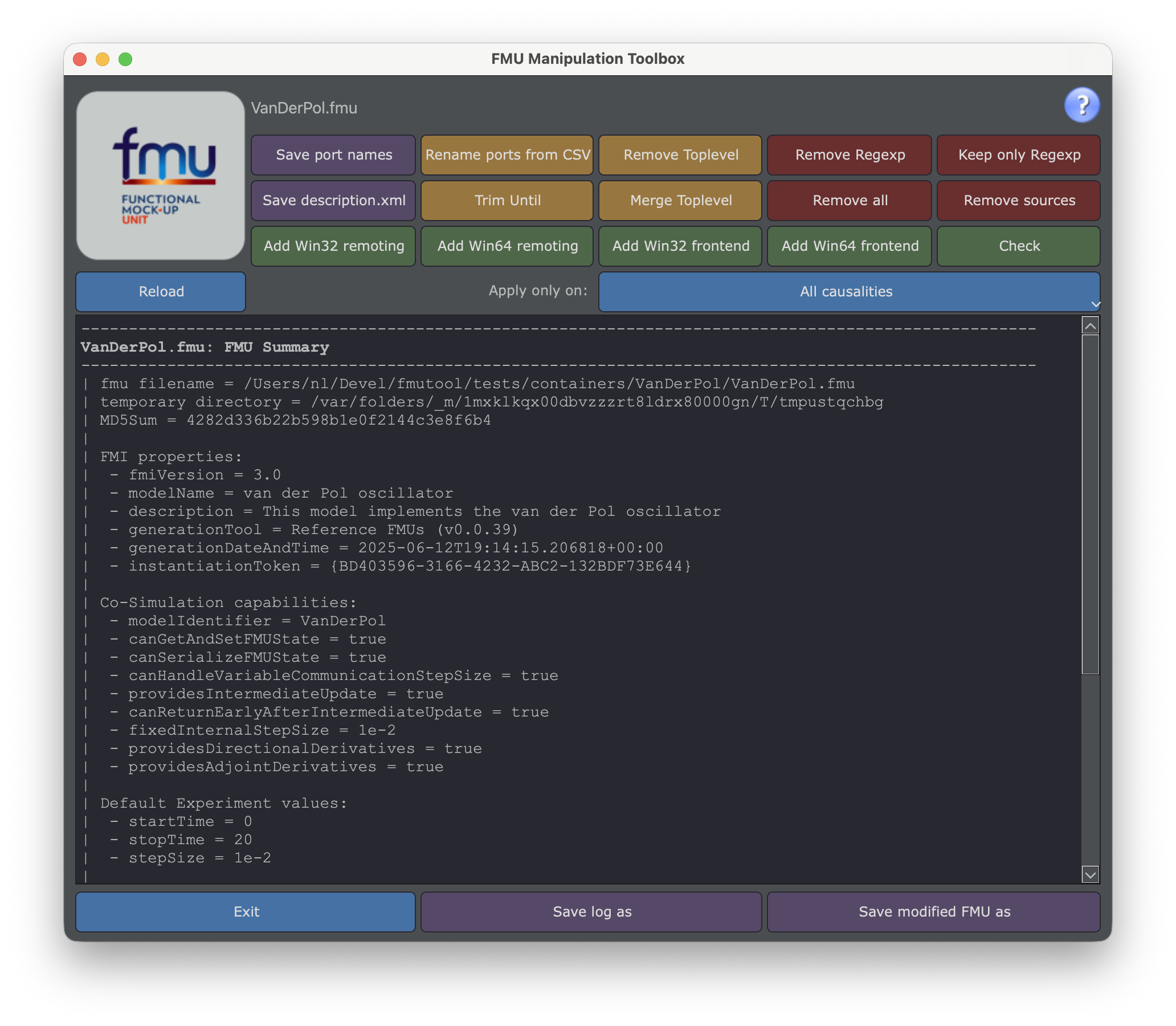
Interface Overview
The window is organized as a single grid:
1. Drop Zone / Loading Area (top-left)
- Drop zone: click it, or drag & drop a
.fmufile onto it, to load an FMU. - The loaded FMU name is shown next to it, together with the online help icon (opens the documentation website).
2. Operation Buttons (grid, upper area)
- One color-coded button per available operation (see Button Color Code).
- Clicking a button immediately applies the corresponding operation to the loaded FMU (some buttons prompt for a value or a file first).
3. Reload / Filter Row
- Reload button: discards all changes applied so far and reloads the FMU from disk.
- Apply only on: a single dropdown button listing all causalities (
parameter,calculatedParameter,input,output,local,independent). Uncheck the causalities you want to exclude; every operation triggered afterwards only applies to the causalities that remain checked.
4. Log Area (center)
- A scrollable text log reporting every action performed: the FMU summary (printed automatically after loading), each applied operation, and any warning or error.
- This is not an editable/sortable port table — port names are only shown as part of the logged text (e.g. the
-summaryoutput or CSV export confirmation).
5. Bottom Bar
- Exit: close the application.
- Save log as: export the log area content to a
.txtfile. - Save modified FMU as: repack the current (in-memory) modifications into a new
.fmufile.
Button Color Code
The interface uses an intuitive color code (matching the operation's effect):
| Color | Action Type | Examples |
|---|---|---|
| 🔴 Red | Remove information | Remove Regexp, Keep only Regexp, Remove all, Remove sources |
| 🟠 Orange | Modify modelDescription.xml | Rename ports from CSV, Remove Toplevel, Merge Toplevel, Trim Until |
| 🟢 Green | Add components or check | Add Win32/Win64 remoting, Add Win32/Win64 frontend, Check |
| 🟣 Purple | Extract and save | Save port names, Save description.xml, Save log as, Save modified FMU as |
| 🔵 Blue | Filter scope or exit | Apply only on, Reload, Exit |
Typical Workflow
Step 1: Load an FMU
- Click the drop zone (or drag & drop a
.fmufile onto it).
Result: The FMU name is displayed, and its summary (-summary equivalent) is automatically logged in the central log area.
Step 2: Explore the FMU
The log area shows the FMU summary: FMI properties, co-simulation capabilities, default experiment values, supported platforms, embedded resources, and the number of ports per causality.
Tip: Every subsequent operation appends its own log section below, so you can scroll back to review everything that has been applied so far.
Step 3: Apply Transformations
🟣 Save Port Names to CSV
Use Case: Prepare a file for renaming ports
- Click Save port names
- Choose location and filename in the file dialog
Result: A CSV file with all ports (or only the causalities selected in the filter) is created.
🟠 Remove Top-Level Hierarchy
Use Case: Simplify name hierarchy
Before:
Action: Click Remove Toplevel.
After:
🟠 Rename Ports from CSV
Prerequisite: Have a CSV file with name;newName columns (e.g. produced by Save port names)
- Click Rename ports from CSV
- Select your CSV file in the file dialog
The in-memory FMU is updated with new names — remember to use Save modified FMU as afterwards!
🔴 Remove Ports
Option 1: Remove by Regular Expression
- Click Remove Regexp
- Enter a regular expression in the prompt (e.g.,
^Internal\..*) - Validate
Option 2: Restrict to a Causality First
- Open Apply only on: and uncheck every causality except the one(s) you want to target (e.g. keep only
parameterchecked) - Click Remove all (removes every remaining port matching the filter)
🟢 Add Binary Interface (Windows FMUs)
Use Case: Add a 64-bit interface to a 32-bit-only Windows FMU
- Click Add Win64 remoting
- Wait for processing to complete
Also Available: - Add Win32 remoting: add a 32-bit interface to a 64-bit-only FMU - Add Win32 frontend / Add Win64 frontend: wrap the existing DLL behind a remoting front-end for process isolation, without changing bitness
See the Remoting Guide for the full picture (this operation only applies to FMI 2.0 co-simulation FMUs).
🟢 Check FMU
Use Case: Validate FMU compliance with the FMI standard
- Click Check
- Read the result in the log area (compliant / not compliant, with XSD validation details)
Step 4: Restrict the Scope of an Operation
Use Apply only on: to limit any subsequent operation to a subset of causalities:
- Click Apply only on:
- Uncheck the causalities you want to exclude (at least one must remain checked)
- Trigger any operation button — it will only affect ports whose causality is still checked
The button label reflects the current selection (e.g. parameter, input), or All causalities when nothing is excluded.
Step 5: Save Modified FMU
⚠️ IMPORTANT: The original FMU is never modified.
- Click Save modified FMU as
- Choose name and location for the new FMU
The new FMU contains all your modifications!
Usage Examples
Example 1: Simplify FMU Structure
Objective: Remove VehicleModel. prefix from all ports
Steps: 1. Load FMU → VehicleModel.fmu 2. Click Remove Toplevel 3. Click Save modified FMU as → VehicleModel_simplified.fmu
Result: - Before: VehicleModel.Engine.Temperature - After: Engine.Temperature
Example 2: Export Only Parameters
Objective: Create a CSV file with only parameters
Steps: 1. Load FMU → module.fmu 2. Apply only on: → uncheck everything except parameter 3. Click Save port names → parameters.csv
Example 3: Clean Internal Variables
Objective: Remove all variables starting with _internal
Steps: 1. Load FMU → module.fmu 2. Click Remove Regexp 3. Enter: ^_internal.* 4. Validate 5. Click Save modified FMU as → module_clean.fmu
Best Practices
✅ Do
- Always save with a new name to keep original intact
- Check FMU after important modifications (Check button)
- Test modified FMU in your simulation environment before production use
- Save the log (Save log as) to keep a trace of the applied transformations
❌ Avoid
- Don't chain too many operations without saving intermediate results
- Don't modify without backup of the original
- Don't forget to click Save modified FMU as before closing the application — in-memory operations are lost otherwise
GUI Limitations
Performance
For FMUs with many thousands of variables, logging every port during an operation may make the log area slow to scroll.
Solution: Use command line or Python API for better performance on very large FMUs.
Complex Operations
Some advanced or repetitive operations are only practical via command line or Python API:
- Batch processing of many FMUs
- Automation scripts / CI pipelines
- Writing and registering custom checkers
Other GUI Tools
Looking for more graphical tools?
- FMU Variable Editor (
fmueditor): spreadsheet-like editor for variable names and descriptions. - FMU Container Builder (
fmucontainer-gui): visual node-graph editor to assemble FMU containers. - FMU Toolbox Launcher (
fmutoolbox): unified launcher for all GUI tools.
Troubleshooting
Interface Won't Launch
Problem: ModuleNotFoundError: No module named 'PySide6'
Solution: Install the GUI extra:
Problem: On Linux, Qt fails to start with an error about the xcb platform plugin.
Solution: Install the system Qt/X11 dependencies, e.g. on Ubuntu/Debian:
Interface is Frozen
Solution: 1. Wait — very large FMUs can take a while to load or to log a full summary. 2. If it is truly stuck, close the application and relaunch with a smaller FMU, or use the command line / Python API instead.
Going Further
For more advanced operations:
- 📖 CLI Guide - Command line usage
- 🐍 Python API - Automation with scripts
- 💡 Examples - Advanced use cases
Support
For any questions or issues: - 📚 Troubleshooting - 🐛 GitHub Issues