FMU Variable Editor — GUI
The FMU Variable Editor provides a spreadsheet-like interface to inspect and edit FMU variables (names and descriptions) as well as simulation experiment settings — without using the command line.
Launching the Interface
Or from the FMU Toolbox Launcher, click FMU Variables Editor.
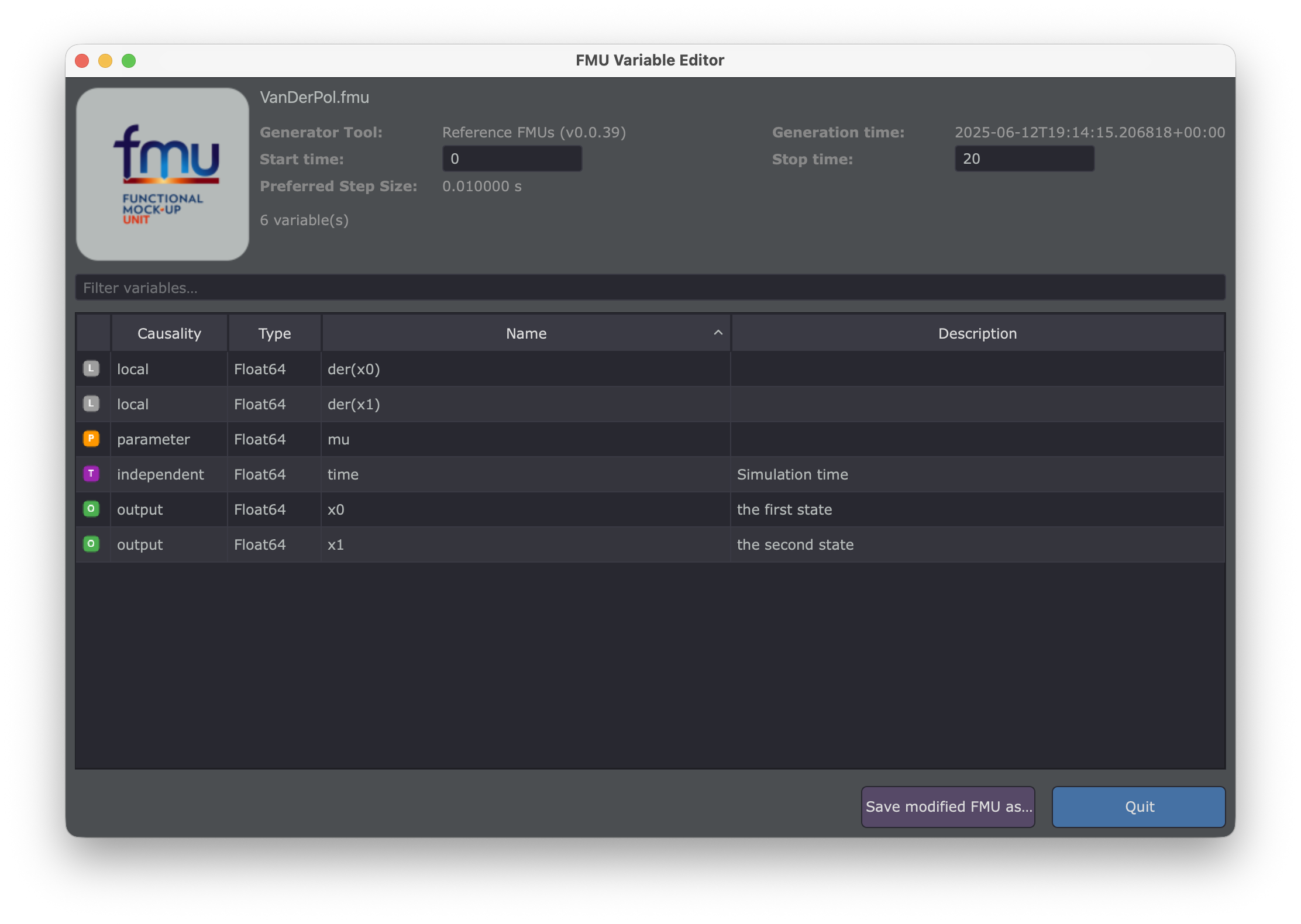
Interface Overview
The interface is organized into the following areas:
| Area | Description |
|---|---|
| Drop Zone (top-left) | Drag & drop area to load an FMU |
| FMU Info (top-right) | Metadata: name, generator tool, date, step size, experiment settings |
| Filter Bar (middle) | Text field to filter variables across all columns |
| Variable Table (center) | Sortable, editable table of all FMU variables |
| Bottom Bar | Save button, quit button, and status messages |
Loading an FMU
Drag and drop a .fmu file onto the drop zone in the top-left corner.
Once loaded, the interface displays:
- FMU name (bold title)
- Generator Tool and Generation Date
- Start Time and Stop Time (editable)
- Preferred Step Size (read-only)
- Variable count
Variable Table
The table lists all variables defined in the FMU's modelDescription.xml:
| Column | Description |
|---|---|
| (icon) | Color-coded causality icon |
| Causality | input, output, parameter, local, independent, etc. |
| Type | FMI data type (Real, Integer, Boolean, String, …) |
| Name | Variable name — editable |
| Description | Variable description — editable |
Causality Icons
Each variable is tagged with a color-coded icon:
| Icon | Causality |
|---|---|
| I (blue) | Input |
| O (green) | Output |
| P (orange) | Parameter |
| L (gray) | Local |
| T (purple) | Independent |
| C (brown) | Calculated Parameter |
| S (teal) | Structural Parameter |
Editing Variables
- Rename a variable: double-click on the Name cell and type the new name.
- Edit a description: double-click on the Description cell.
- Modified values are highlighted in orange to indicate unsaved changes.
Sorting and Filtering
- Sort: click any column header to sort ascending/descending.
- Filter: type in the filter bar to instantly filter variables across all columns (name, causality, type, description).
Editing Experiment Settings
The Start Time and Stop Time fields in the top-right area are editable:
- Modify the values directly in the text fields.
- Changes will be written into the
DefaultExperimentelement of themodelDescription.xmlwhen saving.
Note
The Preferred Step Size is displayed for information only and cannot be edited here.
Saving the Modified FMU
- Click Save modified FMU as…
- Choose a filename and location
- The new FMU is created with all your modifications applied
Original FMU is preserved
The original FMU file is never modified. You always save to a new file.
Only modified variables and experiment settings are written — unchanged variables pass through as-is.
Unsaved Changes Detection
If you close the editor or load a new FMU while there are unsaved modifications, a confirmation dialog will appear asking whether you really want to discard your changes.
Typical Workflow
Rename Variables in Bulk
- Load the FMU
- Use the filter bar to find variables (e.g., type
Motor) - Double-click each Name cell to rename
- Save the modified FMU
Add or Edit Descriptions
- Load the FMU
- Sort by Causality to group inputs, outputs, etc.
- Double-click Description cells to add or update documentation
- Save
Adjust Simulation Timing
- Load the FMU
- Edit Start Time and/or Stop Time in the top-right panel
- Save
Keyboard Shortcuts
| Shortcut | Action |
|---|---|
| Double-click cell | Edit variable name or description |
| Click column header | Sort by column |
| Type in filter bar | Filter variables |