FMU Variable Editor — GUI
The FMU Variable Editor provides a spreadsheet-like interface to inspect and edit FMU variables (names and descriptions) as well as simulation experiment settings — without using the command line.
Launching the Interface
Or from the FMU Toolbox Launcher, click FMU Variables Editor.
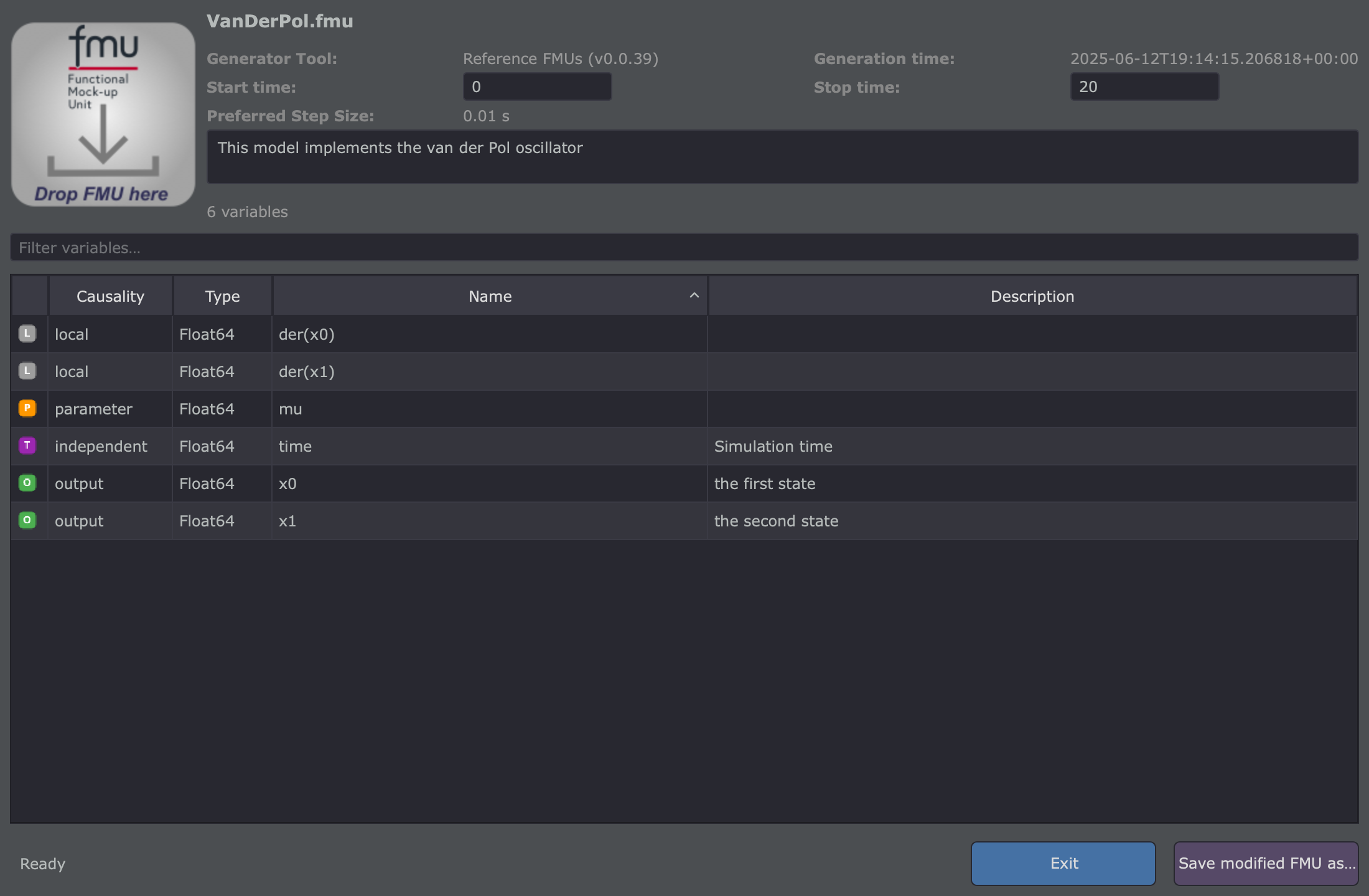
Interface Overview
The interface is organized into the following areas:
| Area | Description |
|---|---|
| Drop Zone (top-left) | Drag & drop area to load an FMU |
| FMU Info (top-right) | Metadata: name, generator tool, date, step size, experiment settings |
| Filter Bar (middle) | Text field to filter variables across all columns |
| Variable Table (center) | Sortable, editable table of all FMU variables |
| Bottom Bar | Status bar (last log message), quit button, and save button |
Loading an FMU
Drag and drop a .fmu file onto the drop zone in the top-left corner.
Once loaded, the interface displays:
- FMU name (bold title)
- Generator Tool and Generation Date
- Start Time and Stop Time (editable)
- Preferred Step Size (read-only)
- Variable count
Variable Table
The table lists all variables defined in the FMU's modelDescription.xml:
| Column | Description |
|---|---|
| (icon) | Color-coded causality icon |
| Causality | input, output, parameter, local, independent, etc. |
| Type | FMI data type (Real, Integer, Boolean, String, …) |
| Name | Variable name — editable |
| Description | Variable description — editable |
Causality Icons
Each variable is tagged with a color-coded icon:
| Icon | Causality |
|---|---|
| I (blue) | Input |
| O (green) | Output |
| P (orange) | Parameter |
| L (gray) | Local |
| T (purple) | Independent |
| C (brown) | Calculated Parameter |
| S (teal) | Structural Parameter |
Editing Variables
- Rename a variable: double-click on the Name cell and type the new name.
- Edit a description: double-click on the Description cell.
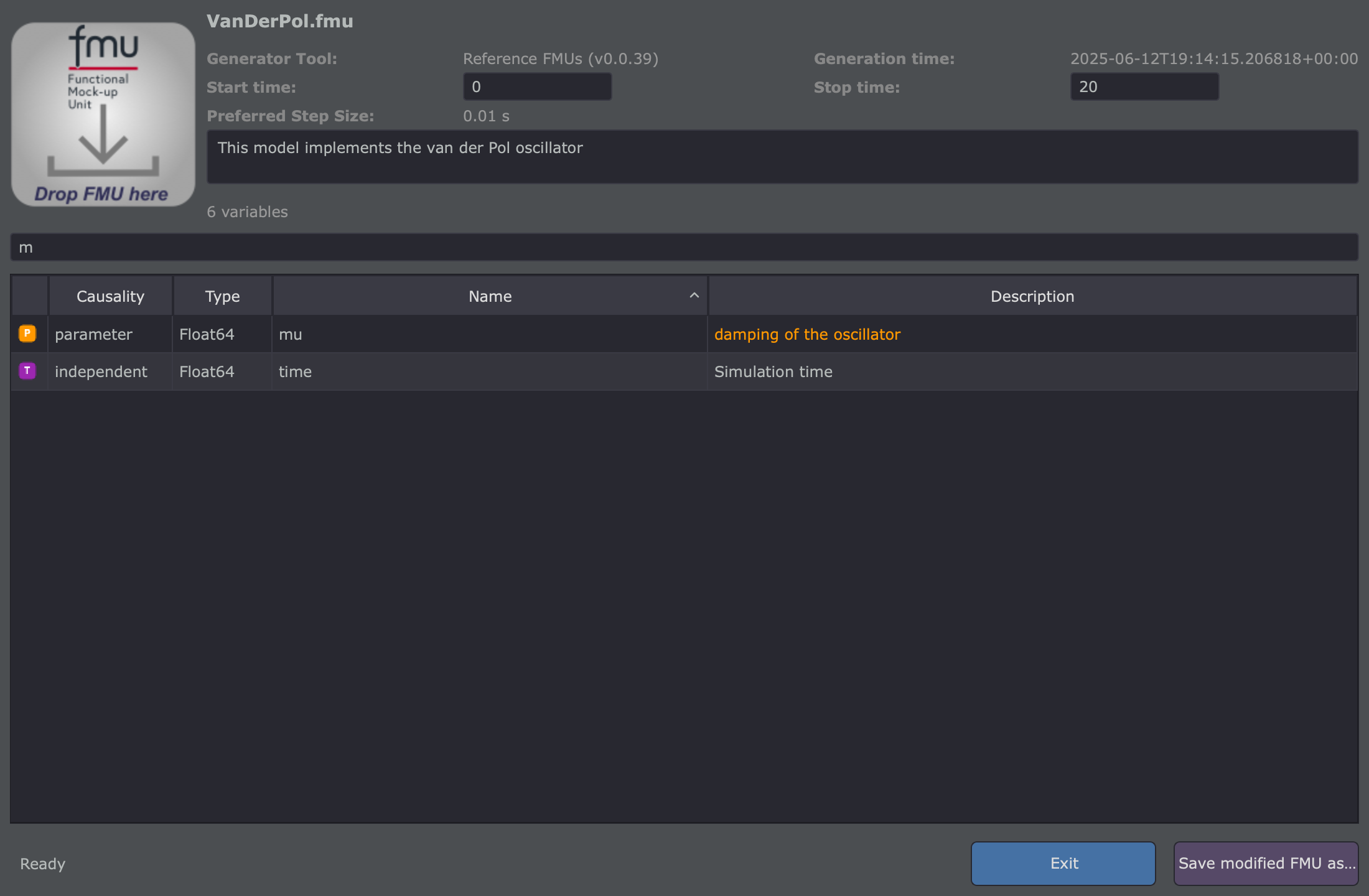
- Modified values are highlighted in orange to indicate unsaved changes.
Sorting and Filtering
- Sort: click any column header to sort ascending/descending.
- Filter: type in the filter bar to instantly filter variables across all columns (name, causality, type, description).
Editing Experiment Settings
The Start Time and Stop Time fields in the top-right area are editable:
- Modify the values directly in the text fields.
- Changes will be written into the
DefaultExperimentelement of themodelDescription.xmlwhen saving.
Note
The Preferred Step Size is displayed for information only and cannot be edited here.
Saving the Modified FMU
- Click Save modified FMU as…
- Choose a filename and location
- The new FMU is created with all your modifications applied
Original FMU is preserved
The original FMU file is never modified. You always save to a new file.
Only modified variables and experiment settings are written — unchanged variables pass through as-is.
Status Bar and Log Window
The status bar, left of the buttons, shows the last message of level Info or above (for example FMU saved as '…'., or an error while loading an FMU), in the colour of its level. It stays until the next message.
Click the status bar to open the log window: it lists every message of this editor window since it was opened, with a level filter, a case-insensitive search, Save Logs… (saves the displayed messages in a text file), Clear and Close. It is the same window as in the FMU Container Builder.
The status bar and the log window only show the messages of their own editor window: other windows opened from the launcher have their own log.
Unsaved Changes Detection
If you close the editor or load a new FMU while there are unsaved modifications, a confirmation dialog will appear asking whether you really want to discard your changes.
Typical Workflow
Rename Variables in Bulk
- Load the FMU
- Use the filter bar to find variables (e.g., type
Motor) - Double-click each Name cell to rename
- Save the modified FMU
Add or Edit Descriptions
- Load the FMU
- Sort by Causality to group inputs, outputs, etc.
- Double-click Description cells to add or update documentation
- Save
Adjust Simulation Timing
- Load the FMU
- Edit Start Time and/or Stop Time in the top-right panel
- Save
Keyboard Shortcuts
| Shortcut | Action |
|---|---|
| Double-click cell | Edit variable name or description |
| Click column header | Sort by column |
| Type in filter bar | Filter variables |